
Updated: June 20, 2008
With Firefox 3 finally released, it is time to upgrade and enjoy the new features and the performance increase it offers. But, the truth is we have learnt to trust our current profile in Firefox 2 and naturally you’d be leery of upgrading to Firefox 3. For good reasons. There are still some extensions that haven’t been updated for Firefox 3.
But, with all the hype that’s going on with Firefox 3 (I am guilty of that too 😉 ) and if you are curious to play with it without messing your current Firefox 2 setup, here is how you do it.
If you have read my previous article on Backing up your Firefox profile, you are already familiar and comfortable with using Profiles. Although recommended to read my previous post, it is not essential to follow the few easy steps in this How to.
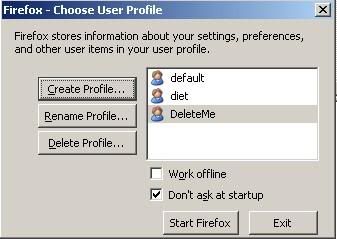
- Create a New Profile: You can create a profile exclusively for Firefox 3 in your Firefox 2 Profile Manager. Name it something like DeleteMe so you know you are just testing it.
From your command prompt,
c:\Program Files\Mozilla Firefox\firefox.exe -ProfileManager ( for Windows) - Download Firefox 3: Download the latest Firefox 3.
- Install Firefox 3: You have choose a different installation folder than the default one as choosing the default will overwrite your current Firefox 2! You could also choose to get the Portable Firefox 3.
- Start Firefox 3: Start Firefox 3 with the new DeleteMe profile you created. The key here is the ‘-no-remote’ parameter as it makes Firefox start a second Firefox.exe process with the new profile

From your command prompt,
d:\firefox3\firefox\firefox.exe -P DeleteMe -no-remote
( for Windows – I unzipped the Firefox 3 nightly build to D:\firefox3 directory)
You could also create a Desktop Shortcut and change the property of the shortcut to look like in the Picture below so you don’t have to type it all in every time.
You could run your Firefox 2 simultaneously with Firefox 3 because they are both using different Profiles.
Now that I have Firefox 2 & Firefox 3 simultaneously, you can safely try it out and see which extensions work and which don’t before actually making the switch.
(Thanks Chu Yeow for sharing this trick.)
New: If you are on Mac OSX, you could have an donationware application MultiFirefox maintain these profiles for you and switch between them without getting your hands dirty. [via TUAW]


I’m still working up the courage to try out Firefox 3.0. I generally don’t like to test until Beta 2 when it is fairly stable.
I’m the same way when it comes to using it regularly. But, this way at least I can check out the new features as they make it to the nightly builds.
The disposable profile makes me brave to try it out. 🙂
Me too not tried the version 3. I too dont like these unstable browsers, another one was safari for Windows.
I usually wait until it’s a release candidate before trying it out. This post is very tempting though haha.
@Nirmal.. I hear you. The first release of Safari on Windows was bad but I wonder how it is now.
@Brown.. that’s the whole point. I am just trying to push those people on the wall to give it up and try Firefox 3 so I can learn more about it from you. 🙂
Wow, our guy eventually came up with the same method as you. Great minds do think alike.
http://www.teamhackaday.com/2007/12/27/running-firefox-2-and-firefox-3-beta-2-side-by-side/
snorkle256’s last blog post..By: snorkle256
Snorkle.. that’s very cool and glad you found it useful! 🙂
I wish I’d seen earlier when all the Betas and RC versions were out, I had to install them on my laptop to test out seperately.
There are still many extensions from Firefox 2 that don’t in Firefox 3 yet, so this is a great way of running both!
Zaths last blog post..Blog Banter: Game Distribution – Digital vs Physical
People keep talking about how great Firefox is, but was about the new release of IE? The only reason i hate the Firefox is so popular now is because the defualt search engine is Google, and my websites only rank on MSN. So for every new Firefox user, that maybe one less visitor for me…lol.
Very handy for testing, it works perfectly. The only snag as far as I can see is on a PC machine my Firefox 2 is set as defualt browser now rather than 3 (which is what i want)
Thanks for this in any case
Nice trick!
I wish I had seen it before I upgraded to firefox 3. I lost many extensions during the switch……… 🙁
Fahads last blog post..Top 10 Best Torrent Sites
Awesome tip buddy.Will give it a try.
Tweakwindowss last blog post..How To Install & Use PortableApps Pack In Windows?
Good idea. I like the idea of nameing it delete so you can find it fast and delete it if it does not work. I still like to wait untill most of the bugs are gone before i add another one.